
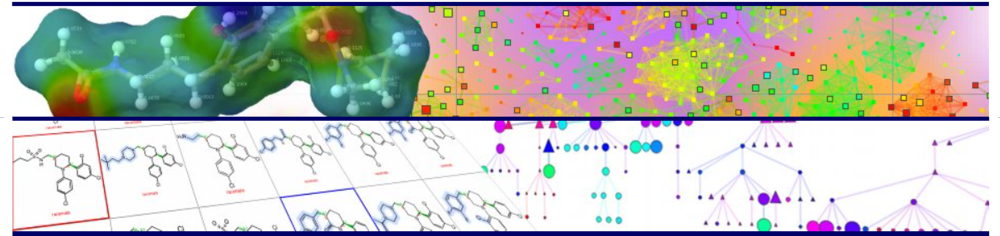
DataWarrior is a powerful, open-source software primarily used in the life sciences for interactive data visualization and analysis, and with a strong emphasis on chemical intelligence. It allows users to explore tabular data, visualize chemical structures, and analyze structure-activity relationships. This versatility makes it an invaluable tool for researchers seeking to extract hidden knowledge from large chemical datasets. The following list of “Ten DataWarrior Tricks You Might Not Know” promises to reveal lesser-known functionalities that can significantly enhance a user’s efficiency and analytical capabilities within the software.
-
Sorting Table Data
When clicking a column header in the table view, then all rows are sorted according to that column’s data. Subsequent clicks toggle between ascending and descending sort order. If some rows are selected and if you hold the ‘Shift’ key while sorting, then all selected rows show up at the top of the table followed by the rest. Both row sets are still sorted by the column’s content.
-
Managing Data Subsets
When browsing data and after selecting one single or multiple rows in any view, you may press Ctrl-1 to add the selected row(s) to a default list. Repeating this multiple times, you may define a data subset of higher interest. Pressing Ctrl-0 removes selected rows from the default list. If marker color or table background color is associated with default list membership, then your view shows directly, which rows belong to your defined subset.
-
Defining Exclusion Groups in Substructures
In a substructure filter or any other place where you can define a substructure, you may mark a substituent (one or multiple connected atoms) to be an ’exclude group’. Then this part of the substructure turns into a substructure within the substructure, which is not allowed at that position. This way, for instance, you may define amines as nitrogen atoms that are not allowed to carry a carbonyl group.
-
Animating Filters for Dynamic Views
Some filters possess a ‘gear wheel’ icon, which lets you define animation parameters. These may cause the filter to automatically change the visible subset of rows over time. This way you may make a graphical view to automatically cycle through data categories or show the evolution of some properties over time.
-
Pasting Structures from Various Formats
Within the structure editor or on a structure filter you may press the right mouse button and select ‘Paste Structure or Name’. This does not only paste in a structure from the clipboard but also generates a chemical structure from any IUPAC name, trivial name, acronym, drug name, SMILES, CAS-Number from the clipboard.
-
Using Graphical Views as Filters
You may turn any graphical view into a filter by clicking its configuration icon (wrench icon) and marking ‘Use View as Explicit Filter’. When you then select any data within this view, all other views show the same rows only.
-
Overriding Column Data Types
Column data types are determined automatically. When you hover the mouse pointer over a column header, a tool tip displays the perceived type among other column related information. If the perceived type does not meet your expectation, e.g. because an otherwise numerical column contains some rows with non-numerical content, then you may overwrite the perceived type from the column header popup menu with ‘Set Column Data Type To…’.
-
Querying External SQL Databases
You may use DataWarrior to directly query any in-house or external relational databases. For instance to retrieve all FDA approved drugs from the DrugCentral database, choose ‘Retrieve Data From SQL-Database’ from the ‘DataBase’ menu, input “postgresql://unmtid-dbs.net:5433/drugcentral” as connect string and “select structures.* from structures,approval where structures.id = approval.struct_id and approval.type = ‘FDA’” as SQL-statement. When asked for user and password, use “drugman” and “dosage”, respectively.
-
Finding Columns by Name
If a dataset has many columns, it may be a tedious task to find a particular column in the table. If you click the ‘magnification glass’ button at the top right of the table view, a field appears that lets you type in a part of a column name, causing all columns to vanish if their name doesn’t contain the typed string.
-
Locating the Reference Row
If you click on a marker in a graphical view, then you choose this row to be the so-called ‘Reference Row’, which is indicated by a red frame. In order to locate this reference row in the table view, you may click its the top left button, which causes the table to scroll as much as needed to reveal the reference row to you.